
Manage Citations: Zotero
Manage Citations: Zotero
Zotero is a free document management and citation creation software. Here are the steps to get started with Zotero.
Getting Started
-
Create a free account.
Go to zotero.org and register with your George Mason email address to get unlimited cloud storage and sync across multiple devices.
-
Download and install.
Install both the desktop client and the browser plugin for the easiest workflow.
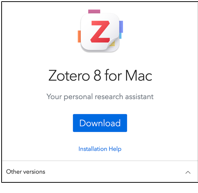
Zotero download page 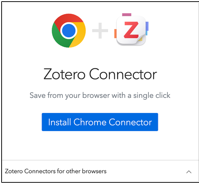
Zotero browser connector -
Save sources with the browser connector.
Click the Zotero button in your browser toolbar to save documents directly into your desktop library.
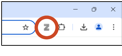
Zotero button in browser ribbon -
Manage your library.
Drag and drop articles directly into the desktop client, or right-click entries to export citations.
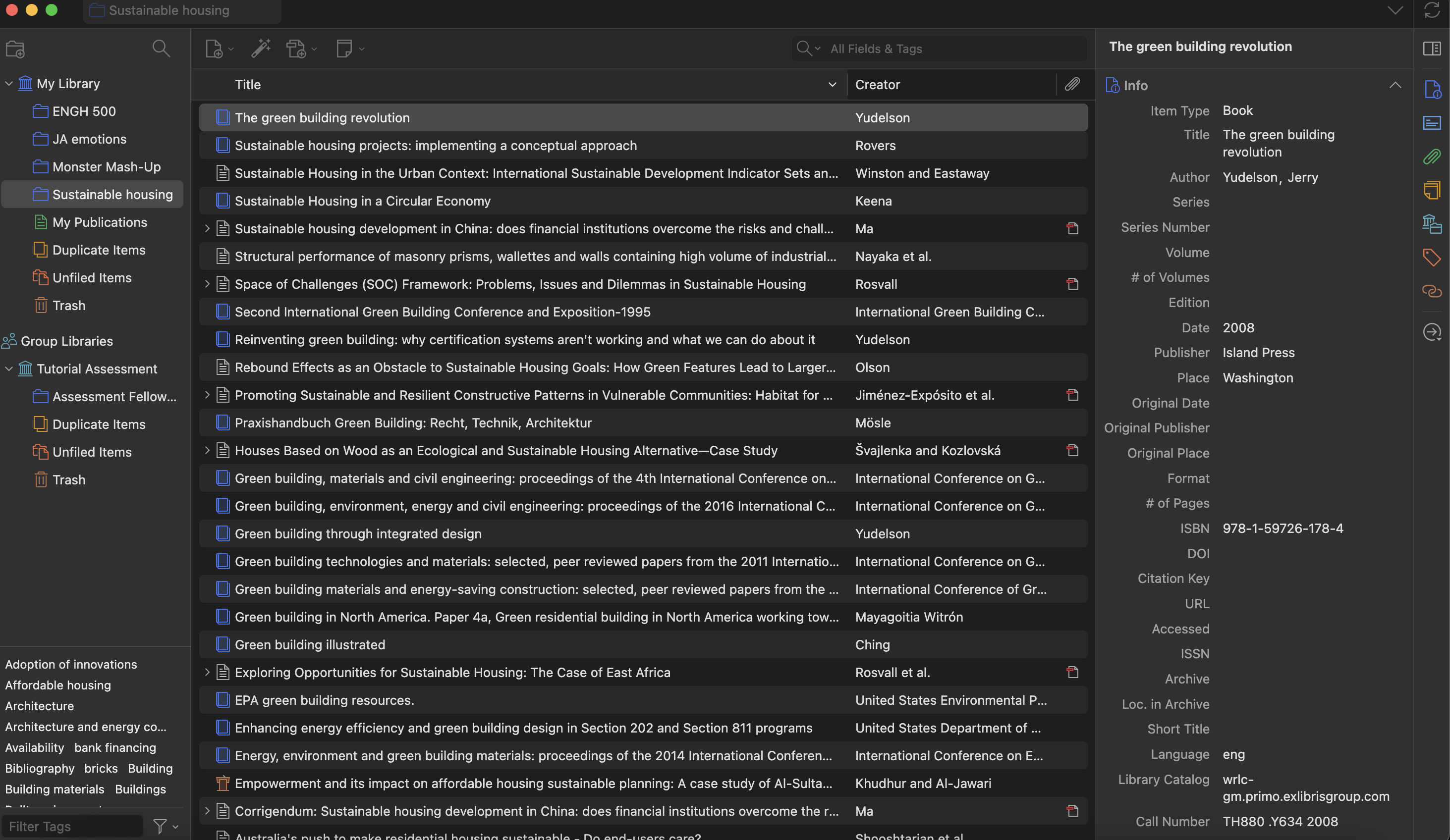
A Zotero library
Zotero and Microsoft Word
Zotero connects directly with Microsoft Word to help you create in-text citations and reference lists.
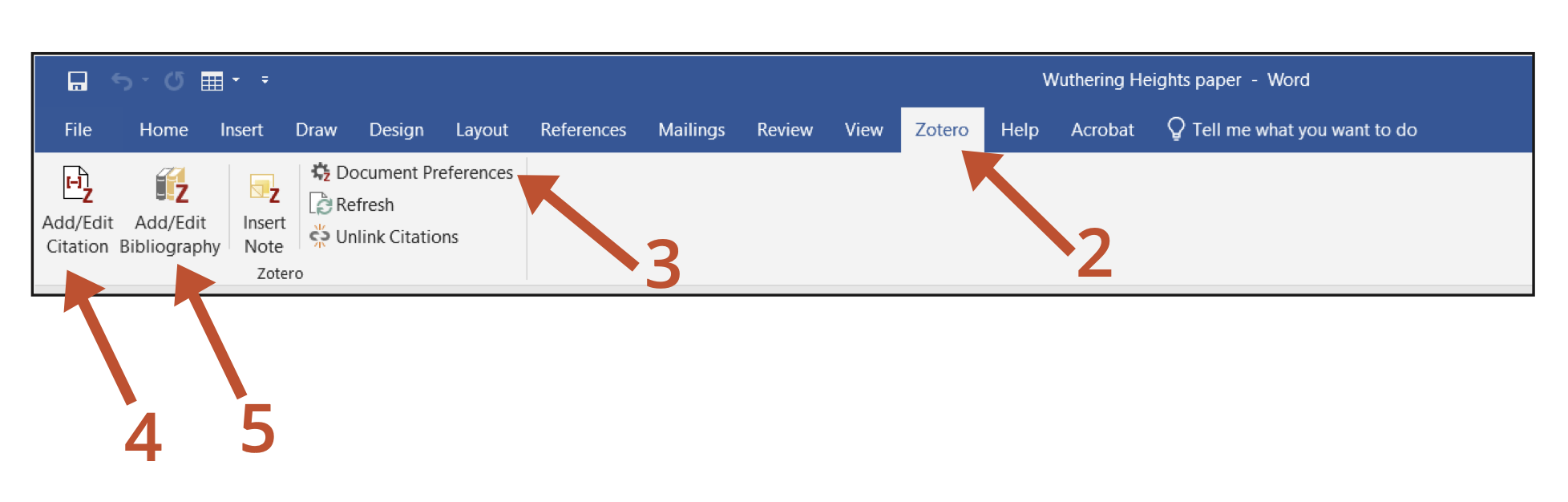
- Open the Zotero desktop application — it must be running in the background during these steps.
- Click the “Zotero” tab in the Microsoft Word ribbon.
- Click “Document Preferences” to select the correct citation style for your document.
-
Click “Add/Edit Citation” to open a search bar connected to your Zotero library. Search for a source to insert a citation.
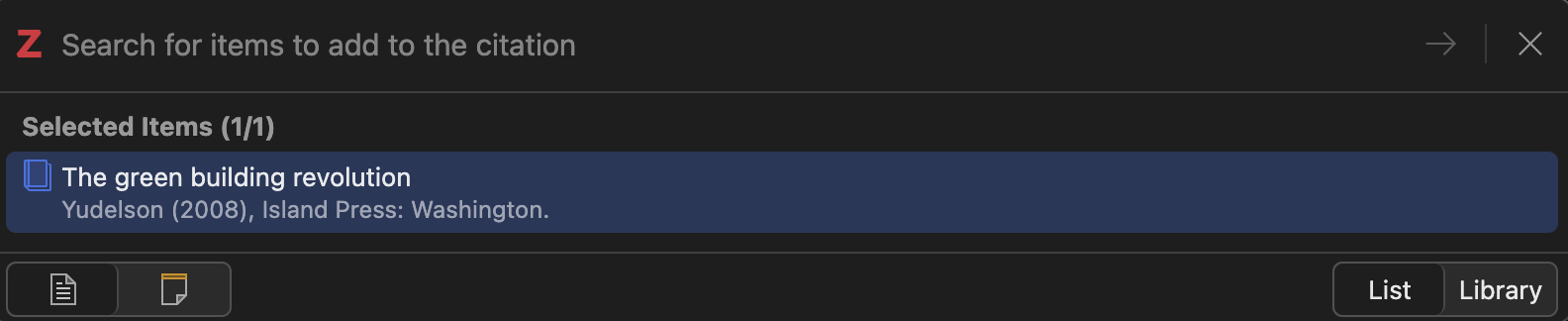
Zotero citation dialog - Click “Add/Edit Bibliography” to generate your Works Cited list when you are finished writing.
Video Tutorials
Zotero Part 1: First Steps
Learn how to download and set up Zotero, a citation management software. Note: Mason users now receive unlimited storage when using their Mason email address at sign-up.
Zotero Part 2: The Zotero Library
Learn how to organize your Zotero library.
Zotero Part 3: Adding Sources
Learn how to use the browser connector and Zotero desktop app to easily import sources into Zotero.
Zotero Part 4: Exporting Citations
Learn how to export your citations out of your Zotero library.
Zotero Part 5: Zotero and Microsoft Word
Learn how to create automatic in-text citations and a bibliography in Word using Zotero.
Zotero Part 6: Shared Libraries
Learn how to create, share, and join your Zotero groups.

This tutorial by The Teaching & Learning Team is licensed under a Creative Commons Attribution 4.0 International License.